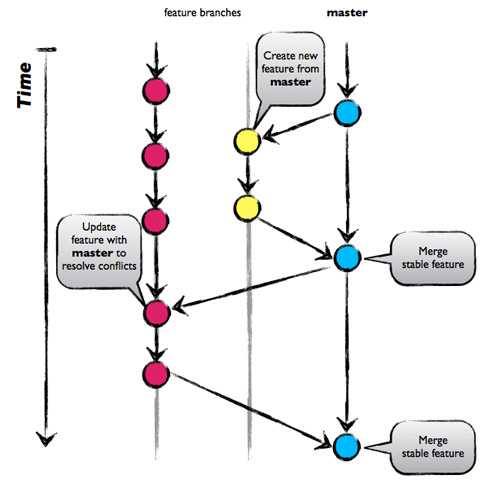
Git is a distributed version control system that tracks changes in any set of computer files, usually used for coordinating work among programmers collaboratively developing source code during software development.
It records changes to a file or set of files over time so that you can recall specific versions later. It’s like having “undo” for your entire project, but with much more power.
Key Concepts
Repository: A database containing all the files and history of your project.
Commit: A snapshot of your repository at a specific point in time.
Branch: A lightweight, movable pointer to a commit.
Git basics
Start by creating and/or updating a local copy of the repository
git init: Initializes a new git repository
git clone: Copies a repository from the cloud
git pull: Pull changes from the cloud to an existing local copy
Make changes and commit
git add: Adds changes to the staging area - ready for commit
git commit: Create a commit comprising all changes in the staging area
Share commits
git push: Push all commits to the cloud
Code
graph TD
    E[Clone/Pull from cloud] --> A[Make changes]
    F[Initialize repo] --> A
    A --> B[Stage changes]
    B --> C[Commit changes]
    C --> D[Push changes to cloud]
graph TD
    E[Clone/Pull from cloud] --> A[Make changes]
    F[Initialize repo] --> A
    A --> B[Stage changes]
    B --> C[Commit changes]
    C --> D[Push changes to cloud]
TipGit needs to be told what to do
Git will not guess what you want, and git will not automatically do things for you. You have to tell it what to do.
For anyone who is annoyed when your text editor automagically knows what you want better than you do and reformats your entire document, this is a feature.
Branching Strategies
Why use branches? To enable parallel development by isolating the main codebase from
New features
Bug fixes
Experiments
A number branching strategies have been proposed, each with different use cases (Haddad 2022).
GitFlow
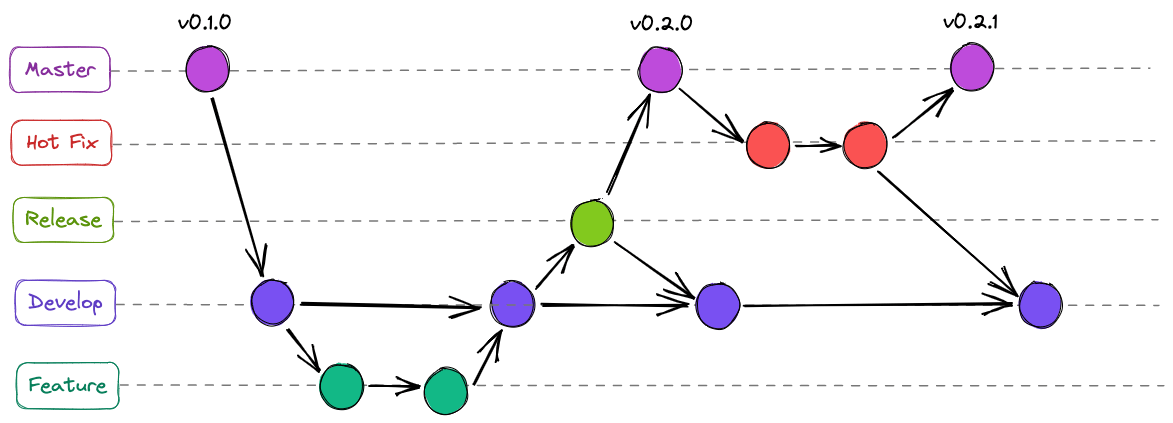
GitFlow is a heavy, structured branching strategy proposed by Driessen (2010) that has received a lot of attention over the years.
Main branches:
master or main: Stable, production-ready code
dev or develop: Latest integrated code for the next release
Supporting branches:
feature/*: New features development
release/*: New production release preparation
hotfix/*: Quick patches to production issues
Pros:
Allows for parallel development on a large scale
Excellent for managing multiple versions of a product.
Cons:
Can be overly complex and cumbersome for simple projects.
Slows down the CI/CD process.
GitFlow diagram
GitHub Flow
GitHub Flow is a simpler, continuous-delivery-focused strategy (“GitHub Flow” n.d.), where the main branch is always in a deployable state.
Workflow:
Create a descriptive feature branch from main.
Commit changes to the feature branch.
Open a Pull Request (PR) to discuss and review changes.
Merge the feature branch into main.
Deploy to production.
Pros:
Simple, easy to understand, and fast.
Ideal for teams with continuous integration and deployment.
Cons:
Not suitable for managing multiple versions or environments.
Requires a high level of testing and discipline to keep main stable.
GitHub Flow diagram
GitLab Flow
GitLab Flow is a hybrid strategy that combines elements of GitFlow and GitHub Flow (“What Is GitLabFlow?” n.d.).
Key Feature: Uses environment branches (e.g., production, staging) in addition to the main branch.
Workflow:
Start a feature branch from main.
Open a Merge Request (MR) to merge into main.
main branch is automatically deployed to a testing environment.
Merge main into a staging branch, which is deployed to the staging environment.
Merge staging into a production branch, which is deployed to the production environment.
Pros:
Provides more structure and isolation than GitHub Flow.
Works well for projects with multiple deployment environments.
Cons:
Doesn’t include extra branches for management of multiple versions
Parallel development for large projects may be challenging
GitLab Flow diagram
Trunk-Based Development
Trunk-based development is a strategy where developers merge small, frequent changes directly into a single, shared “trunk” or main branch.
Core principle: All developers work on the same branch.
Key practices:
Commit small, isolated changes multiple times a day.
Use feature flags to hide incomplete work from users.
The main branch is always in a releasable state.
Pros:
Enables rapid and continuous integration and delivery.
Minimizes merge conflicts and “merge hell.”
Cons:
Requires a mature, disciplined team and strong automated testing.
Can be challenging for new developers.
Choosing a Strategy
Simplicity vs. Complexity: Choose a strategy that matches your team’s size and project’s needs.
Release cycle: A strategy should align with your release cadence (e.g. frequent, continuous, or scheduled).
Team discipline: The simpler the strategy, the more discipline is required from the team.